A man is only as good as his tools.
— Emmert Wolf
A quote that is usually used in the context of construction, or Mechanical Engineering disciplines. Though, it's worth noting that this is equally important for Engineers and Technicians in the IT industry as well.
I believe it's as essential for those working in our industry to understand and hone their tools as it is for a carpenter swinging a hammer.
One of the tools I reach for almost daily is PowerShell, for ARM/Bicep deployments, Azure Automation or even just performing basic tasks in the OS. In order to improve efficiency and the overall experience, I set out to create the ultimate PowerShell profile.
What is a PowerShell profile?
A PowerShell profile is a script that runs when PowerShell starts. It's a great way to customize the shell to your liking and to add functionality that doesn't exist out of the box.
The Prompt
The first thing I wanted to change was the prompt. The default prompt is a bit boring and doesn't provide much information. I wanted to add some colour and some useful information.
I've done this using a third-party module called Oh-My-Posh. This module provides a number of themes and allows you to customize the prompt to your liking. I've chosen the Material theme.
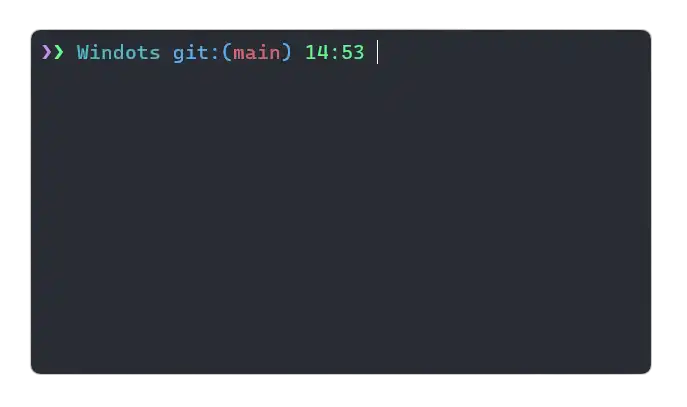
Material Oh My Posh theme ins Windows Terminal
The prompt now shows the current directory, the git branch, and the time.
GitHub Integration
I use two machines for my day-to-day work. My laptop and my desktop. I wanted to be able to easily sync my PowerShell profile between the two machines. In order to achieve this, I have included a setup script in the repository. This script will create a symbolic link to the profile in the repository, and place it in the correct location.
This allows me to make changes to the profile on either machine and have those changes reflected on the other machine.
Within the profile, there is a function that runs each time the profile is loaded. This checks to see if the local git repository is up-to-date with the remote repository. If it's not, a friendly message is displayed to remind me to pull the latest changes (another function included in the profile).
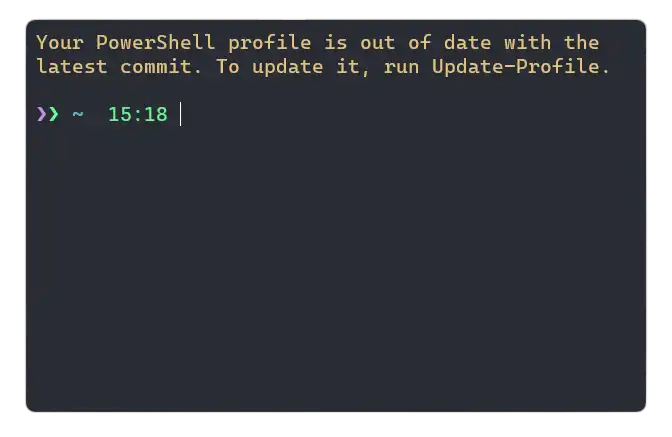
Support For All Session Types
The two main interactions I have with PowerShell are through the Windows Terminal and Visual Studio Code. I wanted to ensure that the profile worked in both of these environments.
The first hurdle was the font. The material Oh-My-Posh theme requires a font that supports Powerline characters. I chose the Caskaydia Cove Nerd Font. This is not installed by default on Windows, so there is logic in the setup script that installs the font and sets it as the default font in the Windows Terminal.
If you look at most documentation for customizing the PowerShell profile, you'll see that it's recommended to use the $PROFILE environment variable. This is a variable that is set by PowerShell and points to the location of the current user's profile script. This works great for the Windows Terminal, but not for Visual Studio Code.
In order to support both environments for a consistent experience, a slightly different (not well-documented) approach is required. You need to use the $PROFILE.CurrentUserAllHosts variable. This variable points to the location of the profile, regardless of the host. This means that the profile will be loaded in both the Windows Terminal, Visual Studio Code, and anywhere else you might use PowerShell on the local machine.
Linux-like Aliases
Because I'm constantly switching between bash and PowerShell, I often get confused about which commands are (and aren't) already aliased. For example, ls is aliased to Get-ChildItem, but there is no equivalent for touch.
I've added a number of custom functions to mimic (as closely as possible) the behaviour of their Linux counterparts. For example, grep is now an alias for my custom Find-String function, and df is an alias for the built-in Get-Volume command.
My favourite addition is su, which is an alias for Start-AdminSession. This opens a new elevated Windows Terminal window.
function Start-AdminSession {
    <#
    .SYNOPSIS
        Starts a new PowerShell session with elevated rights. Alias: su
    #>
    Start-Process wt -Verb runAs
}
Secret Management
When writing scripts, it's often necessary to store secrets. These could be passwords, API keys, or other sensitive information. In the past, I've haphazardly stored these in plain text variables. This is obviously not ideal, but it was the easiest way to get the job done.
In order to create the lowest barrier to entry, I've created a function called Get-OrCreateSecret. This is a semi-interactive function that will prompt for a secret if it doesn't already exist. Now I only need one line in my scripts to get a secret.
Using the SecretManagement & SecretStore modules, the secret is encrypted and stored in a local vault. This means that the secret is only accessible to the user that created it, on the machine that it was created on. Much better than storing it in plain text!
Further Improvements
You'll notice that the repository name is not "PowerShell Profile" and is instead "Windots". Windots is a short form for Windows dotfiles. Dotfiles are a Linux convention for storing configuration files. Though this is not commonplace on Windows, I intend to hack together more centralised configurations for my Windows environments. Hopefully easing the pain of switching between and setting up machines.